Oh My Zsh Update 2025: Modern CLI Tools Setup

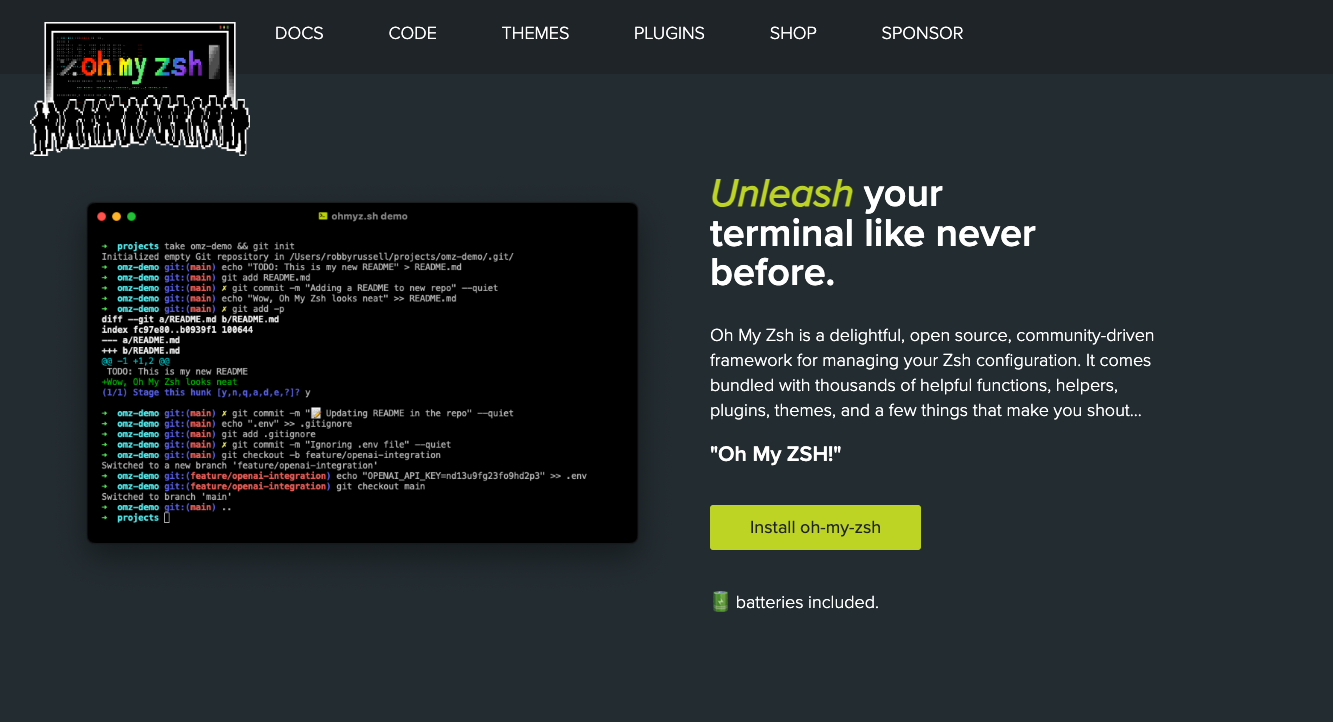
I've been using Oh My Zsh for a while now, and recently I decided to supercharge my terminal setup with some modern CLI tools that have become essential to my daily workflow. In this post, I'll walk you through installing and configuring four powerful tools: eza, bat, delta, and zoxide - each replacing traditional Unix commands with smarter, more feature-rich alternatives.
Why Upgrade Your Terminal Tools?
After years of using the standard ls, cat, and cd commands, I discovered these modern alternatives that offer:
- Better visual feedback with syntax highlighting and colors
- Improved performance with faster execution
- Enhanced functionality like git integration and smart navigation
- Modern UX with better formatting and readability
Let me show you how to set up each tool and integrate them seamlessly with your Oh My Zsh configuration.
My Current Oh My Zsh Configuration
Before diving into the new tools, let me share my existing Oh My Zsh setup that I've been using. This gives you context about what I was working with before adding the modern CLI tools.
Theme
I'm using Powerlevel10k, which provides a fast and highly customizable prompt:
ZSH_THEME="powerlevel10k/powerlevel10k"
typeset -g POWERLEVEL9K_INSTANT_PROMPT=quiet
Powerlevel10k gives me:
- Fast prompt rendering
- Git status indicators
- Customizable segments
- Instant prompt for better performance
Plugins
My plugin configuration includes several productivity enhancers:
plugins=(
    git
    zsh-syntax-highlighting
    zsh-autosuggestions
    zsh-autocomplete
    wakatime
    zsh-navigation-tools
    colorize
    command-not-found
    fast-syntax-highlighting
)
Key plugins I rely on:
- git: Essential git aliases and functions
- zsh-syntax-highlighting: Real-time command syntax highlighting
- zsh-autosuggestions: Suggests commands based on history
- zsh-autocomplete: Enhanced tab completion
- wakatime: Tracks coding time automatically
- zsh-navigation-tools: Advanced navigation utilities
- colorize: Syntax highlighting for various file types
- command-not-found: Helpful suggestions when commands aren't found
- fast-syntax-highlighting: Fast, feature-rich syntax highlighting
Development Tools Integration
My setup also includes integrations for various development tools:
# SDKMAN for Java version management
export SDKMAN_DIR="$HOME/.sdkman"
[[ -s "$HOME/.sdkman/bin/sdkman-init.sh" ]] && source "$HOME/.sdkman/bin/sdkman-init.sh"

# NVM for Node.js version management
export NVM_DIR="$HOME/.nvm"
[ -s "$NVM_DIR/nvm.sh" ] && \. "$NVM_DIR/nvm.sh"

# kubectl completion
[[ $commands[kubectl] ]] && source <(kubectl completion zsh)

# fzf for fuzzy finding
[ -f ~/.fzf.zsh ] && source ~/.fzf.zsh

# JBang for Java scripting
alias j!=jbang
export PATH="$HOME/.jbang/bin:$PATH"
Terminal Setup
I use Kitty as my terminal emulator with the Brogrammer theme, which provides:
- GPU-accelerated rendering
- Multiple windows and tabs
- Customizable themes
- Great performance
What Was Missing
While my setup was already quite powerful, I noticed some areas for improvement:
- File listing: Standard
lslacked git integration and modern features - File viewing:
cathad no syntax highlighting - Git diffs: Default git diff output was hard to read
- Directory navigation:
cdrequired typing full paths or usingcdrepeatedly
This is where the modern CLI tools come in - they fill these gaps perfectly while maintaining compatibility with my existing setup.
Prerequisites
Before we start, make sure you have:
- Oh My Zsh already installed (if not, check my previous post)
- Homebrew installed on macOS (or your package manager of choice)
- Basic familiarity with terminal commands
Tool 1: Eza - Modern Replacement for ls
What is Eza?
Eza is a modern, maintained replacement for the ls command, written in Rust. It provides better defaults, colors, git integration, and tree views.
Installation
brew install eza
Configuration
Add these aliases to your ~/.zshrc:
# Eza aliases (modern replacement for ls)
alias ls='eza'
alias ll='eza -l'
alias la='eza -a'
alias lla='eza -la'
alias lt='eza --tree'
alias lta='eza --tree -a'
Features I Love
- Git integration: Shows git status indicators automatically
- Tree view: Beautiful directory tree visualization with
lt - Better colors: More readable file type indicators
- Faster performance: Written in Rust, it's noticeably faster than
ls
Usage Examples
ls          # Basic listing (now uses eza)
ll          # Long format with details
lt          # Tree view of directory structure
lta         # Tree view including hidden files
Tool 2: Bat - Modern Replacement for cat
What is Bat?
Bat is a cat clone with syntax highlighting, git integration, automatic paging, and line numbers. It's like cat but with superpowers.
Installation
brew install bat
Configuration
Add these aliases to your ~/.zshrc:
# Bat aliases (modern replacement for cat)
alias cat='bat'
alias less='bat'
Features I Love
- Syntax highlighting: Supports hundreds of languages
- Git integration: Shows git changes inline
- Automatic paging: Works like
lessautomatically - Line numbers: Always visible, making code review easier
- File type detection: Automatically applies correct syntax highlighting
Usage Examples
cat file.txt           # View file with syntax highlighting
cat file.js            # JavaScript syntax highlighting
less large-file.log    # Paged view with syntax highlighting
Tool 3: Delta - Beautiful Git Diffs
What is Delta?
Delta is a syntax-highlighting pager for git, diff, grep, and blame output. It makes reading diffs actually enjoyable!
Installation
brew install git-delta
Configuration
Configure git to use delta:
# Set delta as git pager
git config --global core.pager delta

# Configure for interactive rebase
git config --global interactive.diffFilter 'delta --color-only'

# Enable navigation (use 'n' and 'N' to move between diffs)
git config --global delta.navigate true

# Set theme (dark or light, or omit for auto-detection)
git config --global delta.dark true

# Enable line numbers
git config --global delta.line-numbers true

# Better merge conflict display
git config --global merge.conflictStyle zdiff3
Features I Love
- Syntax highlighting: Uses the same themes as bat
- Word-level diffs: Shows exactly what changed
- Side-by-side view: Optional side-by-side comparison
- Navigation: Press
nandNto jump between files in large diffs - Better merge conflicts: Much clearer conflict resolution
Usage Examples
git diff              # Beautiful syntax-highlighted diffs
git show              # Enhanced commit view
git log -p            # Navigate through diffs with 'n' and 'N'
git blame             # Syntax-highlighted blame view
Optional: Side-by-Side View
If you want side-by-side diffs:
git config --global delta.side-by-side true
Tool 4: Zoxide - Smart Directory Navigation
What is Zoxide?
Zoxide is a smarter cd command that learns your habits. It tracks your most frequently and recently used directories and intelligently jumps to them.
Installation
brew install zoxide
Configuration
Add this to your ~/.zshrc:
# Zoxide - smarter cd command
eval "$(zoxide init zsh)"
Features I Love
- Learning algorithm: Gets smarter the more you use it
- Fuzzy matching: Just type part of a directory name
- Interactive mode: Use
zito see and choose from matches - Fast navigation: Jump to frequently used directories instantly
Usage Examples
# Instead of: cd ~/Desktop/code/personal-repo/personal-wiki
z wiki                # Jumps to matching directory
z code                # Jumps to any directory with "code" in path
zi                    # Interactive mode - shows list to choose from
How It Works
- First time: Use regular
cdcommands - zoxide learns from them - Over time: The
zcommand becomes more accurate - Smart matching: It considers frequency, recency, and path similarity
Quick Tips
- Use
zoxide add /pathto manually add directories - Use
zoxide query keywordto see what it would match - Use
zifor interactive selection when unsure
Complete Configuration
Here's the complete section to add to your ~/.zshrc:
# Eza aliases (modern replacement for ls)
alias ls='eza'
alias ll='eza -l'
alias la='eza -a'
alias lla='eza -la'
alias lt='eza --tree'
alias lta='eza --tree -a'

# Bat aliases (modern replacement for cat)
alias cat='bat'
alias less='bat'

# Zoxide - smarter cd command
eval "$(zoxide init zsh)"
For delta, the git configuration is separate (as shown above).
Verification
After adding the configuration, reload your shell:
source ~/.zshrc
Or simply open a new terminal window. Test each tool:
# Test eza
ls
ll
lt

# Test bat
cat ~/.zshrc

# Test delta
git diff

# Test zoxide
z <directory-name>
Troubleshooting
Eza Not Working
If ls still uses the old command:
# Check if eza is installed
which eza

# Verify alias is set
alias ls

# Reload zsh config
source ~/.zshrc
Bat Not Highlighting
If syntax highlighting isn't working:
# Check bat version
bat --version

# Test with a known file type
bat file.js
Delta Not Showing in Git
If git diffs don't use delta:
# Verify git config
git config --global core.pager

# Should output: delta
# If not, run: git config --global core.pager delta
Zoxide Not Learning
Zoxide needs to learn from your cd usage:
# Use regular cd commands first
cd ~/some/directory

# Then zoxide will learn
# Or manually add directories:
zoxide add ~/path/to/directory
My Daily Workflow
Here's how I use these tools together:
- Navigation:
z project-nameto jump to projects instantly - File listing:
llto see detailed file information with git status - Code review:
git diffshows beautiful, syntax-highlighted changes - File viewing:
cat file.jsautomatically highlights JavaScript syntax - Directory exploration:
ltto see project structure at a glance
Performance Impact
All these tools are written in Rust, which means:
- Minimal overhead: They're fast and efficient
- Low memory usage: Won't slow down your terminal
- Quick startup: Instant response times
Additional Productivity Tools to Consider
While eza, bat, delta, and zoxide form a solid foundation, there are several other powerful CLI tools that can further enhance your terminal productivity. Here are some recommendations:
LazyGit - Terminal UI for Git
LazyGit is a simple terminal UI for git commands that makes git operations much more intuitive and visual.
Installation
brew install lazygit
Usage
lazygit # Opens the lazygit interface
Perfect for when you need a visual overview of your git repository without leaving the terminal.
fzf - Fuzzy Finder
fzf (fuzzy finder) is a general-purpose command-line fuzzy finder that integrates with many tools.
Installation
brew install fzf

# Install useful key bindings and fuzzy completion
$(brew --prefix)/opt/fzf/install
Usage Examples
# Fuzzy find files
fzf

# Search command history
# Press Ctrl+R in terminal

# Fuzzy find and open with vim
vim $(fzf)

# Fuzzy find directory and cd into it
cd $(find * -type d | fzf)
ripgrep (rg) - Fast Text Search
ripgrep is a line-oriented search tool that recursively searches directories for a regex pattern.
Installation
brew install ripgrep
Usage Examples
# Search for pattern in current directory
rg "function name"

# Search with case-insensitive matching
rg -i "pattern"

# Search in specific file types
rg "pattern" --type js

# Show context around matches
rg "pattern" -C 3
fd - Simple and Fast Alternative to find
fd is a simple, fast, and user-friendly alternative to find.
Installation
brew install fd
Usage Examples
# Find files by name
fd "pattern"

# Find files by extension
fd -e js

# Find directories
fd -t d

# Exclude certain directories
fd --exclude node_modules
tldr - Simplified Man Pages
tldr provides simplified, community-driven man pages with practical examples.
Installation
brew install tldr
Usage Examples
# Get quick help for a command
tldr tar
tldr git
tldr docker
exa - Alternative to eza (if you prefer)
exa is another modern replacement for ls (note: eza is a fork of exa with more features, but exa is still maintained).
Installation
brew install exa
Note: I recommend sticking with eza as it's more actively developed and has more features, but exa is a valid alternative.
htop - Better Process Viewer
htop is an interactive process viewer that's better than the standard top command.
Installation
brew install htop
Usage
htop # Opens interactive process viewer
jq - JSON Processor
jq is a lightweight and flexible command-line JSON processor.
Installation
brew install jq
Usage Examples
# Pretty print JSON
cat file.json | jq

# Extract specific field
cat file.json | jq '.field'

# Filter array
cat file.json | jq '.[] | select(.status == "active")'
yq - YAML Processor
yq is a portable command-line YAML processor (like jq for YAML).
Installation
brew install yq
Usage Examples
# Read YAML value
yq '.key' file.yaml

# Update YAML value
yq -i '.key = "value"' file.yaml

# Convert to JSON
yq -o json file.yaml
starship - Cross-Shell Prompt
Starship is a minimal, fast, and customizable prompt for any shell.
Installation
brew install starship
Note: Since you're using Powerlevel10k, you might not need this, but it's a great alternative if you want something different.
Recommended Tool Combinations
Here are some powerful combinations:
- Git Workflow:
lazygit+delta= Visual git operations with beautiful diffs - File Operations:
fzf+eza= Fast file finding and listing - Code Search:
ripgrep+bat= Fast search with syntax-highlighted results - JSON/YAML:
jq+yq= Complete data manipulation toolkit - Navigation:
zoxide+fzf= Smart directory jumping with fuzzy finding
My Personal Recommendations Priority
If you're just starting, I'd prioritize in this order:
- fzf - Universal fuzzy finder, integrates everywhere
- lazygit - Makes git operations much easier
- ripgrep - Essential for code searching
- fd - Faster and easier than find
- jq/yq - If you work with JSON/YAML frequently
- tldr - Quick command reference
- htop - Better process monitoring
Each tool fills a specific need and works beautifully with the tools we've already set up (eza, bat, delta, zoxide).
Conclusion
Upgrading my terminal with these modern tools has significantly improved my productivity and made working in the terminal more enjoyable. Each tool replaces a traditional command with a smarter, more feature-rich alternative.
What I've Gained
- Faster navigation with zoxide
- Better code readability with bat and delta
- Clearer file listings with eza
- More efficient git workflows with delta
Next Steps
- Customize themes: Explore different color themes for bat and delta
- Learn shortcuts: Master the navigation features in delta (
n/Nkeys) - Build habits: Use
zregularly to let zoxide learn your patterns - Share knowledge: Help your team adopt these tools
The combination of these tools creates a powerful, modern terminal environment that makes development work more efficient and enjoyable.
Resources:
Core Tools:
Additional Productivity Tools:
- LazyGit GitHub
- fzf GitHub
- ripgrep GitHub
- fd GitHub
- tldr GitHub
- jq GitHub
- yq GitHub
- htop GitHub
- Starship GitHub
Documentation:
Tags: #oh-my-zsh #terminal #cli-tools #productivity #eza #bat #delta #zoxide #lazygit #fzf #ripgrep #development